Digital Signatures
Lankir supports signing PDFs with digital certificates from multiple sources, including hardware tokens.
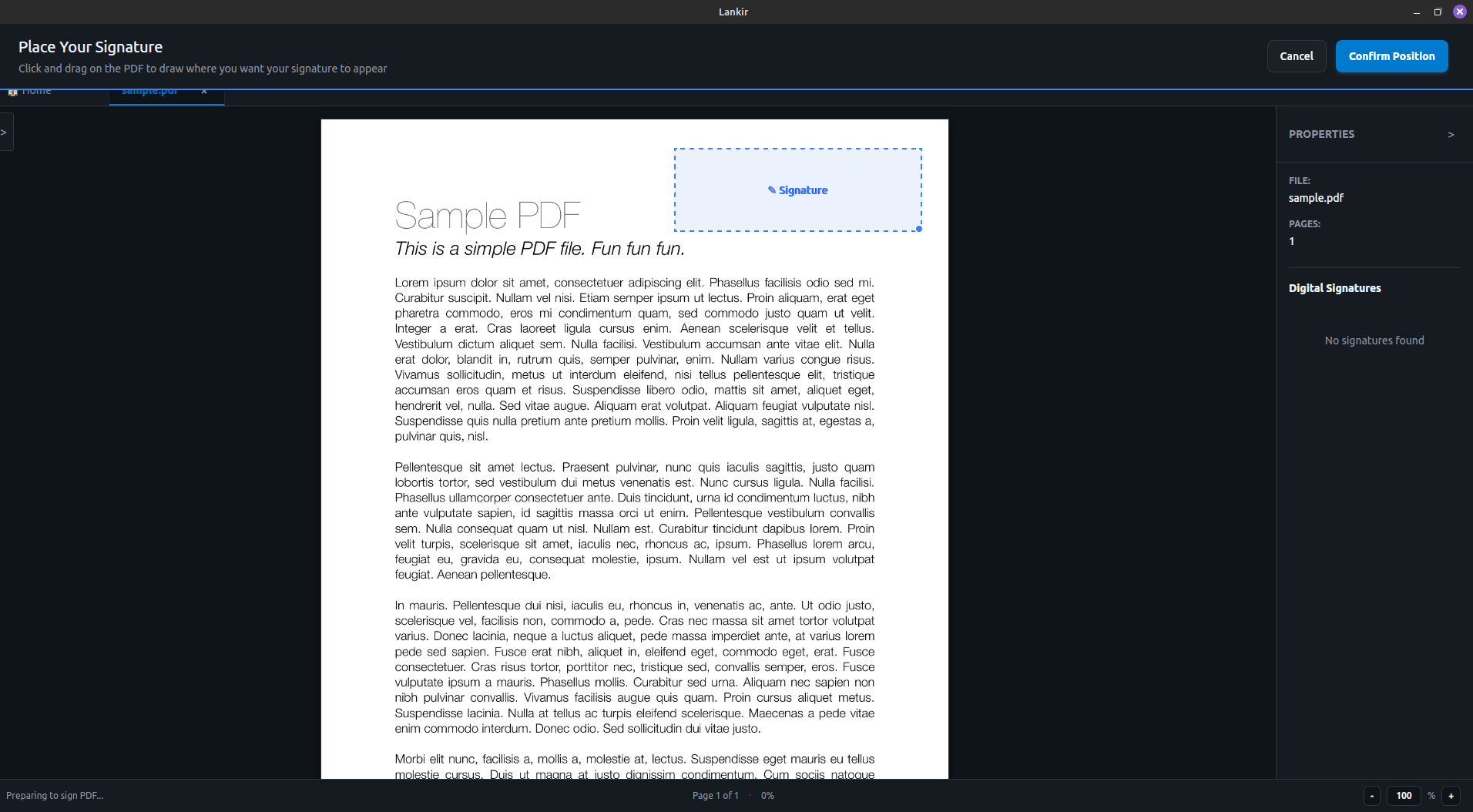
Signing a PDF document with a visible signature
Certificate Sources
Lankir can use certificates from:
Source |
Description |
PIN Required |
|---|---|---|
PKCS#12 |
|
Yes (file password) |
PKCS#11 |
Hardware tokens (smart cards, USB) |
Usually yes |
NSS |
Firefox/Chrome certificate database |
Optional |
Signing a PDF
GUI Method
Open a PDF you want to sign
Click Sign in the toolbar
Select certificate from the dropdown
Enter PIN if prompted
Choose signature profile (invisible or visible)
Click Sign Document

The Sign button in the application toolbar
The signed PDF is saved as original_signed.pdf in the same directory.
CLI Method
# Sign with a specific certificate (by fingerprint)
lankir sign pdf input.pdf output.pdf --fingerprint ABC123...

# Sign with certificate file
lankir sign pdf input.pdf output.pdf --file /path/to/cert.p12 --pin "password"

# Sign with certificate by name (search)
lankir sign pdf input.pdf output.pdf --name "My Certificate"
Invisible vs Visible Signatures
Invisible Signatures
The default signature type. The PDF is cryptographically signed but no visual indicator appears on any page.
lankir sign pdf input.pdf output.pdf --cert ABC123...
Use cases:
Documents where appearance shouldn’t change
Multiple signatures on one document
Automated/batch signing
Visible Signatures
A signature box appears on the PDF showing signing information.
lankir sign pdf input.pdf output.pdf --cert ABC123... \
  --visible \
  --page 1 \
  --x 400 --y 50 \
  --width 200 --height 80
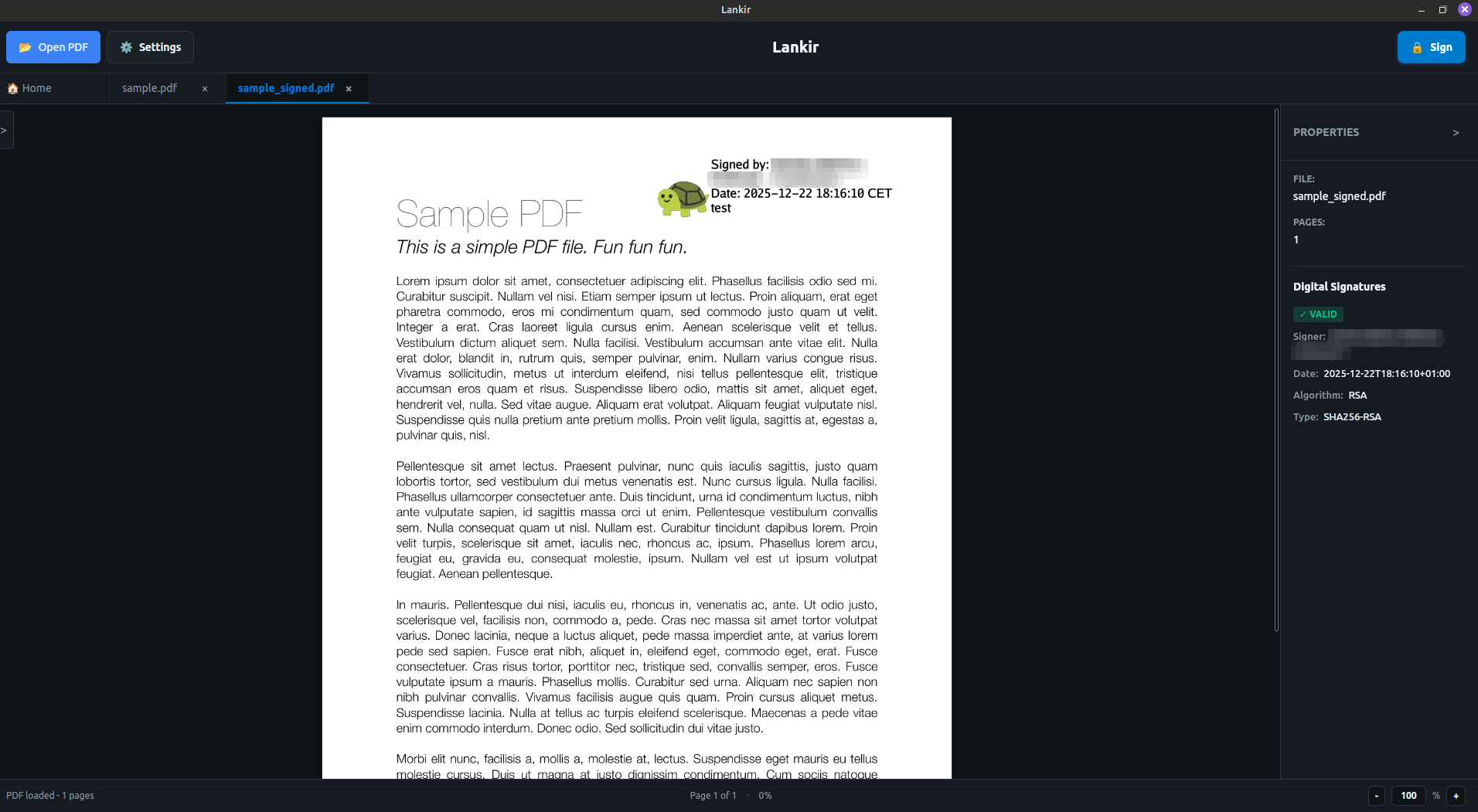
A visible signature showing signer name, date, and optional logo
Position parameters:
--page: Page number (1-indexed)--x,--y: Position from bottom-left corner (in points)--width,--height: Signature box dimensions (in points)
Tip
1 inch = 72 points. A Letter page is 612×792 points.
Using Hardware Tokens
Smart Cards
Insert your smart card into the reader
Ensure
pcscdservice is running:sudo systemctl status pcscd
List available certificates:
lankir cert list --source pkcs11
Sign with PIN:
lankir sign pdf doc.pdf signed.pdf --fingerprint ABC123...
# Enter PIN when prompted
USB Tokens
USB tokens (like YubiKey, SafeNet) work the same way as smart cards through PKCS#11.
Connect your token
Install the vendor’s PKCS#11 module if not auto-detected
Add custom module path if needed:
# Edit config to add token library
lankir config get tokenLibraries
Certificate Selection
By Fingerprint (Recommended)
The most precise method—use the SHA-256 fingerprint:
# List certificates with fingerprints
lankir cert list

# Sign with fingerprint
lankir sign pdf doc.pdf out.pdf --fingerprint a1b2c3d4e5f6...
By Name
Search certificates by common name:
lankir sign pdf doc.pdf out.pdf --name "John Doe"
Warning
If multiple certificates match, you’ll be prompted to use the fingerprint instead.
By File Path
For PKCS#12 files:
lankir sign pdf doc.pdf out.pdf --file ~/certs/mycert.p12
Batch Signing
Sign multiple PDFs with a script:
#!/bin/bash
CERT_FINGERPRINT="abc123..."
PIN="your-pin"

for pdf in *.pdf; do
    lankir sign pdf "$pdf" "signed_$pdf" \
        --fingerprint "$CERT_FINGERPRINT" \
        --pin "$PIN"
done
Warning
Storing PINs in scripts is insecure. Consider using environment variables or a secrets manager for production use.
Signature Profiles
For consistent visible signatures, create and use profiles:
# List profiles
lankir sign profiles list

# Sign with specific profile
lankir sign pdf doc.pdf out.pdf \
    --cert ABC123... \
    --profile "00000000-0000-0000-0000-000000000002"
See Signature Profiles for creating custom profiles.
Signing Workflow Tips
Single Signer
Open PDF
Sign with your certificate
Save and distribute
Multiple Signers
PDFs can have multiple signatures. Each signer:
Opens the already-signed PDF
Adds their signature
Saves (signatures are additive)
Timestamps
Signatures include the signing time from your system clock. For legally binding timestamps, consider using a Time Stamping Authority (TSA)—this feature is planned for future releases.
Troubleshooting
“Certificate not found”
Verify certificate is installed:
lankir cert listCheck certificate store paths:
lankir config get certificateStoresFor PKCS#11: Ensure token is connected and pcscd is running
“Invalid PIN”
PKCS#12: This is the file password, not a PIN
PKCS#11: Check if PIN is required (
requiresPinfield)Some tokens lock after 3 failed attempts
“Certificate cannot sign”
The certificate lacks digital signature key usage. Check:
lankir cert list --valid-only
Only certificates with canSign: true can sign documents.
“Signing failed”
Check verbose output:
lankir --verbose sign pdf doc.pdf out.pdf --cert ABC123...
Next Steps
Signature Profiles - Customize visible signatures
Verification - Verify signed documents
Certificates - Manage certificate sources