Signature Profiles
Signature profiles define the appearance and settings for visible signatures.
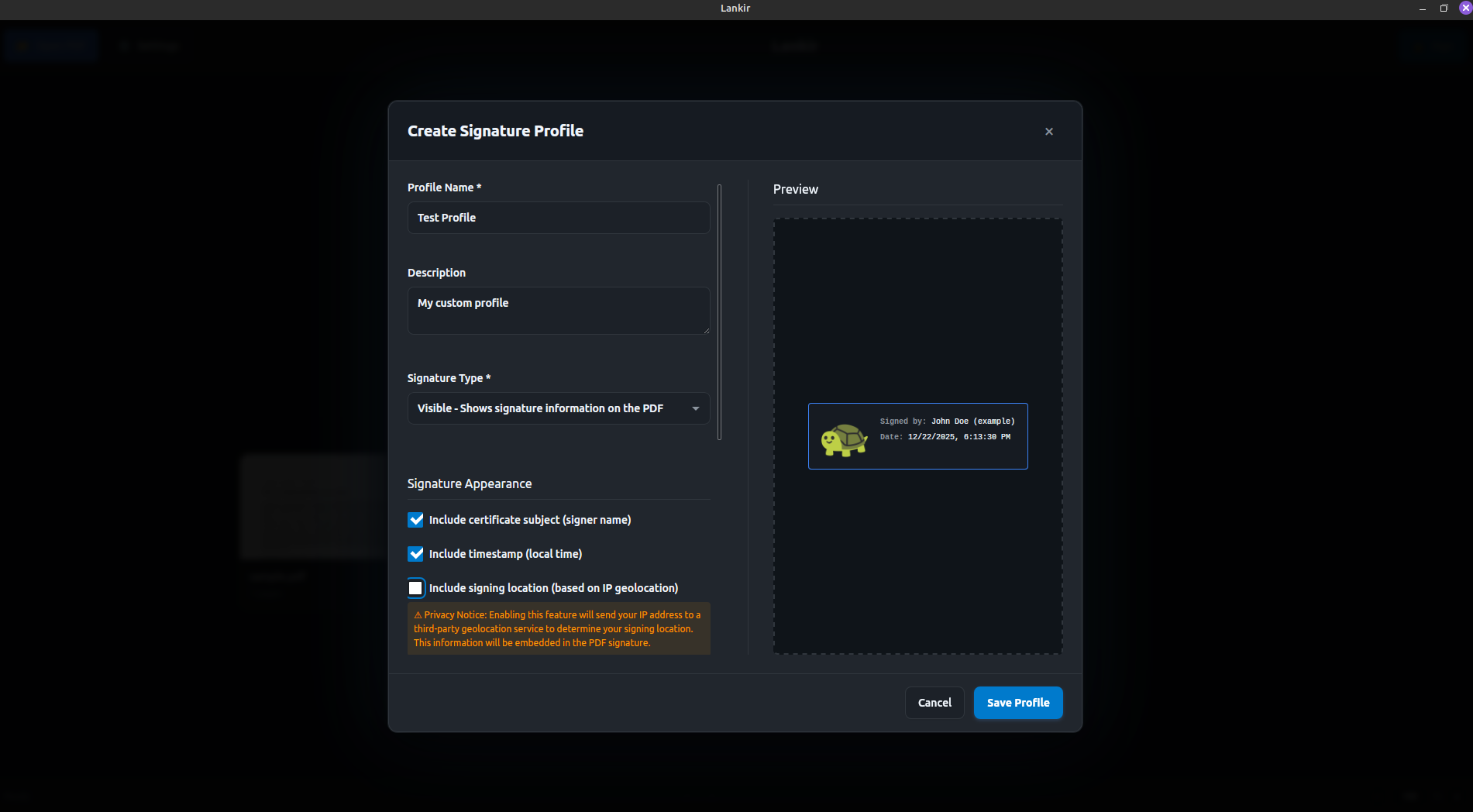
Creating a custom signature profile with logo and positioning options
Overview
A signature profile controls:
Visibility: Invisible (cryptographic only) or visible (appears on page)
Position: Where the signature appears (page, coordinates)
Appearance: What the signature box displays (name, date, logo)
Built-in Profiles
Lankir includes two default profiles:
Invisible Signature
ID:
00000000-0000-0000-0000-000000000001Description: Cryptographic signature with no visual appearance
Use case: Documents where layout shouldn’t change
Visible Signature
ID:
00000000-0000-0000-0000-000000000002Description: Signature box showing signer name and timestamp
Position: Bottom-right of last page
Size: 200×80 points
Listing Profiles
lankir sign profiles list

# JSON output
lankir sign profiles list --json
Using Profiles
In GUI
Click Sign in the toolbar
Select certificate
Choose profile from Signature Profile dropdown
For visible signatures, optionally adjust position by clicking on the page
In CLI
# Use default profile (invisible)
lankir sign pdf doc.pdf out.pdf --cert ABC123...

# Use visible signature profile
lankir sign pdf doc.pdf out.pdf \
    --cert ABC123... \
    --profile "00000000-0000-0000-0000-000000000002"

# Override position for visible signature
lankir sign pdf doc.pdf out.pdf \
    --cert ABC123... \
    --visible \
    --page 1 \
    --x 400 --y 50
Profile Settings
Visibility Options
Value |
Description |
|---|---|
|
No visual appearance on document |
|
Signature box appears on specified page |
Position Settings
Setting |
Type |
Description |
|---|---|---|
|
int |
Page number (1-indexed, 0 = last page) |
|
float |
Horizontal position from left edge (points) |
|
float |
Vertical position from bottom edge (points) |
|
float |
Signature box width (points) |
|
float |
Signature box height (points) |
Note
PDF coordinates start from the bottom-left corner. 1 inch = 72 points.
Appearance Settings
Setting |
Type |
Description |
|---|---|---|
|
bool |
Display the certificate holder’s name |
|
bool |
Display date and time of signing |
|
bool |
Display geographic location (if available) |
|
bool |
Display a custom logo image |
|
string |
Base64 data URL of logo image |
|
string |
Logo placement: |
|
string |
Additional text to display |
|
int |
Text size in points |
Profile Storage
Profiles are stored as JSON files in:
~/.config/lankir/signature_profiles/
Each profile is a separate file named {uuid}.json.
Profile JSON Structure
{
  "id": "12345678-1234-1234-1234-123456789012",
  "name": "Company Signature",
  "description": "Standard company signature with logo",
  "visibility": "visible",
  "isDefault": false,
  "position": {
    "page": 0,
    "x": 360,
    "y": 50,
    "width": 200,
    "height": 80
  },
  "appearance": {
    "showSignerName": true,
    "showSigningTime": true,
    "showLocation": false,
    "showLogo": true,
    "logoPath": "data:image/png;base64,iVBORw0KGgo...",
    "logoPosition": "left",
    "customText": "Approved for release",
    "fontSize": 10
  }
}
Creating Custom Profiles
Via GUI
Go to Settings → Signature Profiles
Click New Profile
Configure settings:
Name and description
Visibility (invisible/visible)
Position (page, coordinates, size)
Appearance options
Click Save
Via File
Create a JSON file in ~/.config/lankir/signature_profiles/:
cat > ~/.config/lankir/signature_profiles/my-profile.json << 'EOF'
{
  "id": "$(uuidgen)",
  "name": "My Custom Profile",
  "description": "Signature for internal documents",
  "visibility": "visible",
  "isDefault": false,
  "position": {
    "page": 1,
    "x": 72,
    "y": 72,
    "width": 200,
    "height": 60
  },
  "appearance": {
    "showSignerName": true,
    "showSigningTime": true,
    "showLocation": false,
    "showLogo": false,
    "customText": "",
    "fontSize": 10
  }
}
EOF
Position Examples
Bottom-Right Corner (Last Page)
"position": {
  "page": 0,
  "x": 360,
  "y": 50,
  "width": 200,
  "height": 80
}
Top-Right Corner (First Page)
"position": {
  "page": 1,
  "x": 360,
  "y": 700,
  "width": 200,
  "height": 80
}
Centered (Specific Page)
For a Letter-size page (612×792 points):
"position": {
  "page": 3,
  "x": 206,
  "y": 356,
  "width": 200,
  "height": 80
}
Logo Requirements
Formats: PNG, JPEG, GIF
Recommended size: 100-200 pixels wide
Encoding: Base64 data URL
Converting Logo to Base64
# Convert image to base64 data URL
echo "data:image/png;base64,$(base64 -w0 logo.png)"
Logo Positioning
Position |
Description |
|---|---|
|
Logo on left, text on right |
|
Logo above text |
Best Practices
Consistent Positioning
For multi-page documents signed by the same organization:
Use the same profile for all signatures
Position signatures consistently (same corner, same size)
Readable Signatures
Keep font size at 10+ points for readability
Ensure adequate contrast with document background
Leave margin from page edges
Logo Usage
Use transparent PNG for best results
Keep logos simple and recognizable at small sizes
Ensure logo doesn’t overpower text information
Troubleshooting
Profile Not Appearing
Check profiles directory exists:
ls -la ~/.config/lankir/signature_profiles/
Invalid Profile
Validate JSON syntax:
python3 -m json.tool ~/.config/lankir/signature_profiles/my-profile.json
Required fields:
id: Valid UUIDname: Non-empty stringvisibility:"invisible"or"visible"
Signature Cut Off
Position too close to edge. Ensure:
x + width < page_width - marginy + height < page_height - margin
Next Steps
Signing PDFs - Use profiles when signing
Verification - Verify signed documents